LivingRoom needs to be set up using a specific process if you plan on using it with Tech Lockdown.
See Getting Started with LivingRoom + Tech Lockdown for more information about LivingRoom.
- First, if you haven't already, make an account on LivingRoom's main website: https://livingroomapp.com/
- If you have an account, log in with your email on LivingRoom's admin panel.
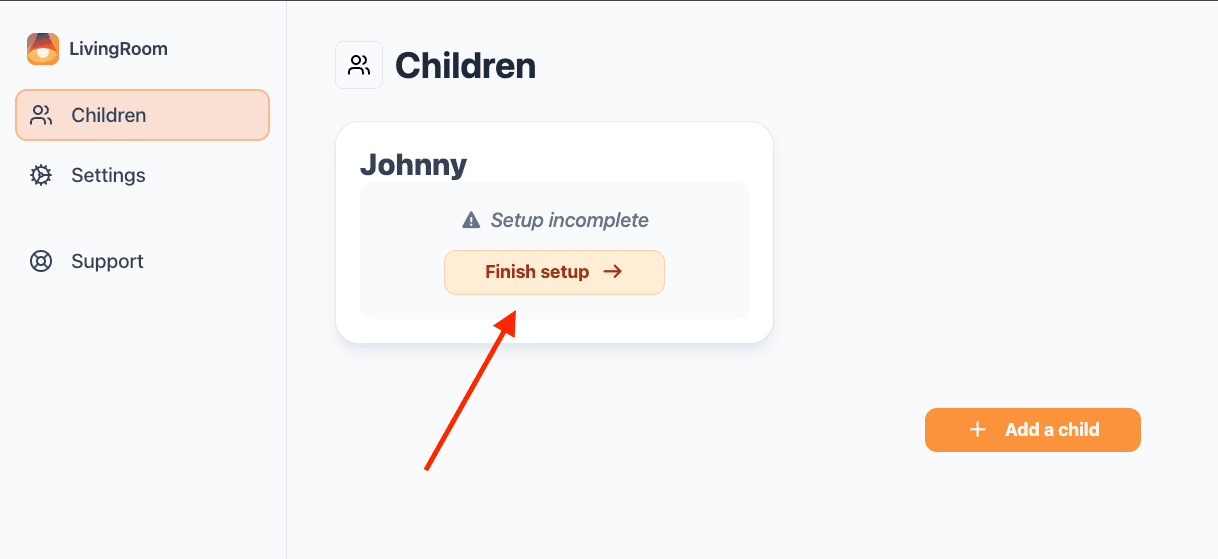
- On LivingRoom's website, add children for each user you'd like to set up.
Note that you should create a children's profile for anyone being monitored; this includes adults! With a child on your LivingRoom account, you can now connect devices to start capturing screenshots. See the image below:
- Install the LivingRoom app on the iPhone being monitored.
You can use the instructions on LivingRoom's website:
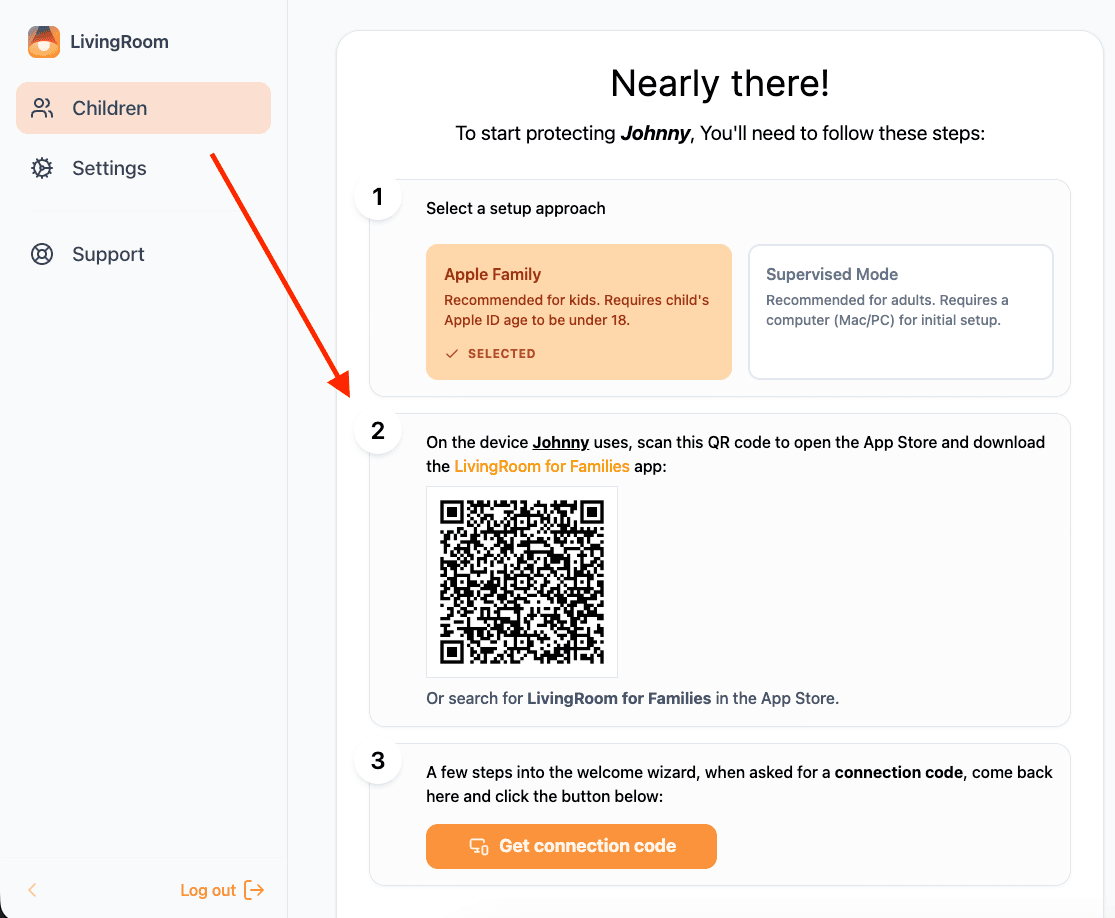
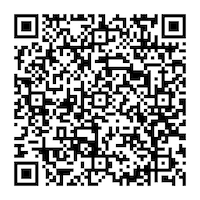
Or, you can scan this QR Code directly:
Some special considerations, since you may have restrictions on Tech Lockdown:
- First, you may need to unblock the App Store so you can install LivingRoom. Check the app blocklist and ensure you remove the App Store from this list. Alternatively, if you have an app allowlist, make sure the App Store is an approved app in your config.
- You need to enforce LivingRoom via your Config File; I'll show you what you need to do next.
- You should seriously consider profile locking with an accountability partner's email, especially if you are the owner of your Tech Lockdown account. See our dedicated help doc on Profile Locking for more information.
- In your Config, enforce LivingRoom by selecting Set up LivingRoom under "Use LivingRoom", like this:
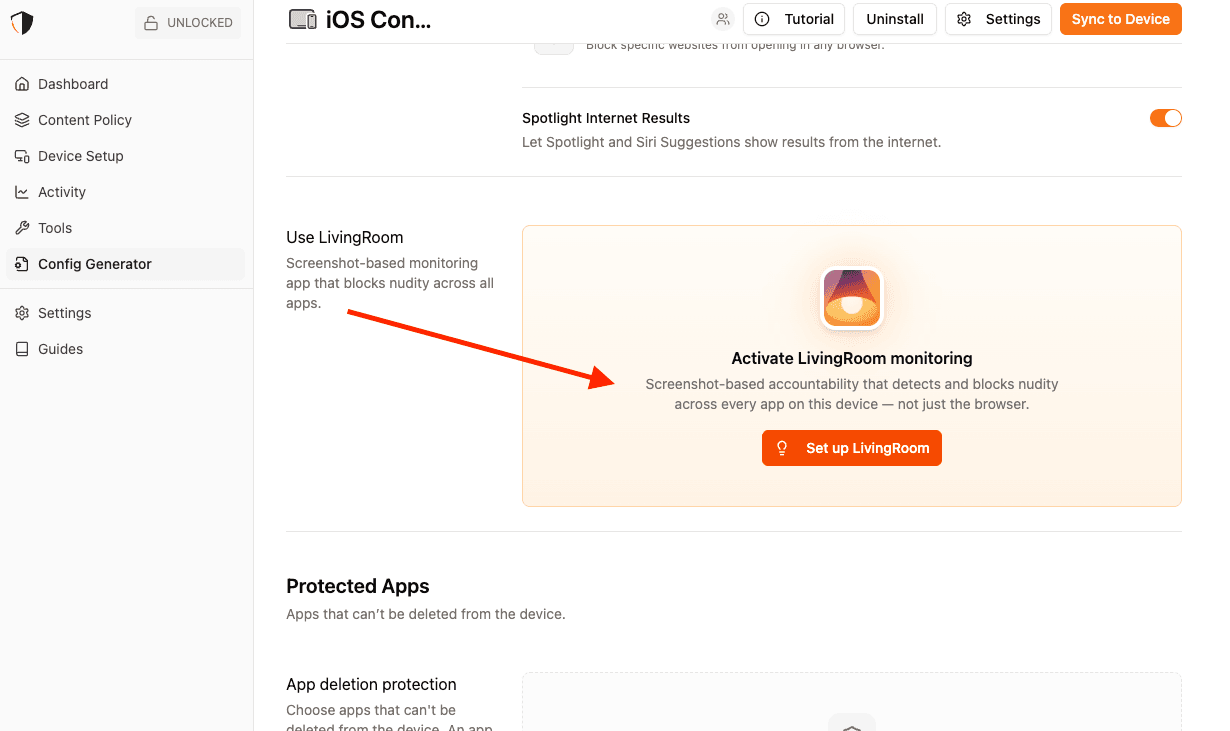
You should see a pop-up on Tech Lockdown walking you through the rest of the setup process:
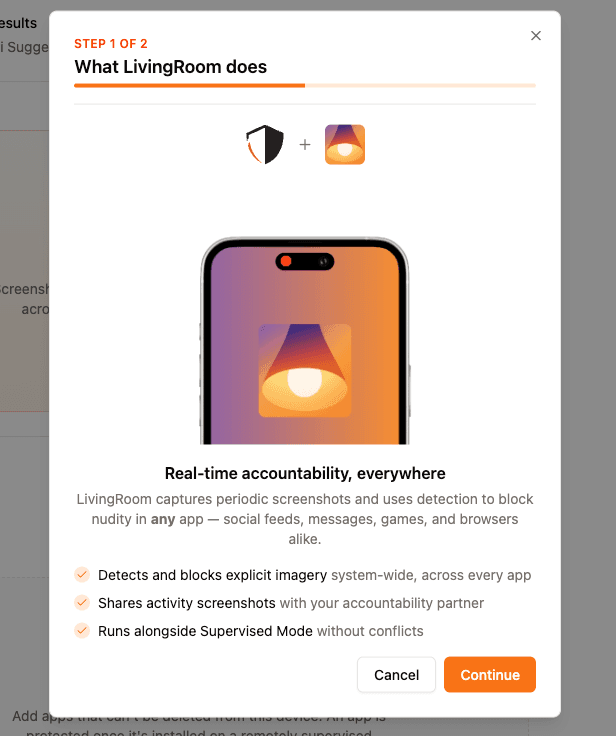
One of the more important options to pay attention to is how LivingRoom will be enforced. Depending on whether you are manually or remotely supervising your iPhone, there are two options:
- Manually supervised devices need to prevent all apps from being deleted to effectively prevent LivingRoom from being uninstalled; there is no workaround for this.
- Remotely supervised devices can specifically enforce the LivingRoom app and prevent it from being removed without affecting other apps.
If possible, we strongly recommend enabling Remote Supervision, as this provides the best experience for iPhones and iPads.
- Sync the changes from your config to your iPhone.
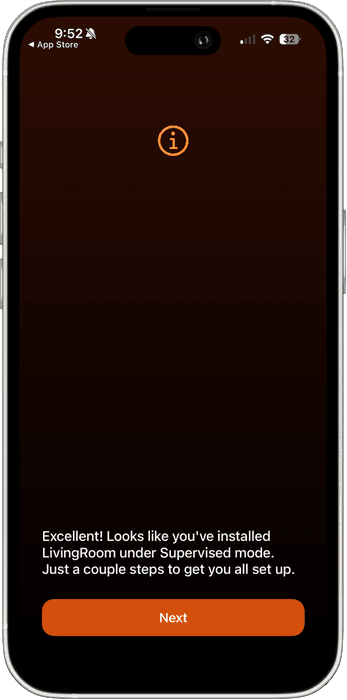
- Close and reopen the LivingRoom app; you should see a screen like the image below
- Lastly, check your Profile Locking restrictions and ensure that you've added your accountability partner's email.
- Turn on Email Notifications for your Accountability Partner, so they get notified if there are changes to profile locking on your Tech Lockdown account.
See how to Uninstall LivingRoom with Tech Lockdown for removal instructions.