Because LivingRoom is enforced with Tech Lockdown, it also needs to be removed using Tech Lockdown's dashboard.
Note that if you have Profile Locking enabled on your Tech Lockdown account, it's possible to restrict this process and make it more difficult to disable it in Tech Lockdown. For the best accountability setup, we strongly recommend adding an accountability partner's email to your locking preferences, as you will need a code from your accountability partner to unlock Tech Lockdown and remove LivingRoom.
- First, ensure your Tech Lockdown profile is unlocked.
- Open the config for your iPhone (or iPad).
- Find the Use LivingRoom section and select that you'd like to Turn off LivingRoom.
- Follow the instructions in the pop-up to remove restrictions from your Config so you can uninstall the LivingRoom app on your iPhone.
- Sync your config to your iPhone.
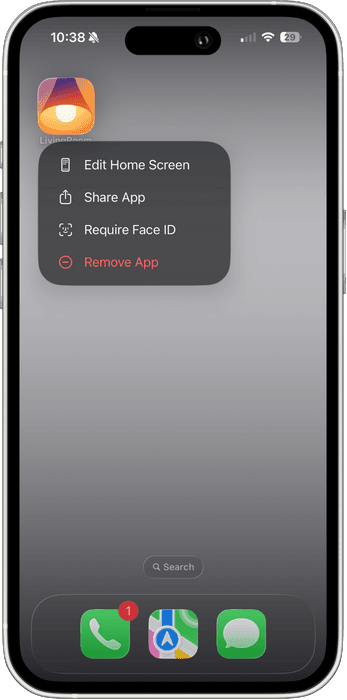
You should now be able to long-press the LivingRoom app icon on your iPhone and delete it.
I disabled LivingRoom, but I still can't uninstall it on my iPhone...
If you have a supervised iPhone, make sure that you are allowed to uninstall apps in general. For example, check Tech Lockdown's Config Generator and ensure this setting looks correct:
If you have a Remotely Supervised iPhone, also ensure that LivingRoom is removed from your Protected Apps list:
You might also check if Screen Time is blocking apps from being deleted. On the iPhone with LivingRoom, go to Settings > Screen Time > Content & Privacy Restrictions > iTunes & App Store Purchases > Installing Apps, and ensure this is allowed.