The old version of Tech Lockdown that used DNS Filter is being completely phased out on March 10, 2026. If you're reading this article, you need to take action to fully migrate over to the new version before this date.
When you click "login" on techlockdown.com, you'll see that there are two login links that you can use.
The "Old Version" would take you to a page that looked like this, where you could manage your DNS Filter settings:
This "Old Version" will be completely phased out on March 10, 2026. This means that you will not be able to log in or use DNS Filter going forward. You must uninstall DNS Filter from your Windows, Mac, Android, or iOS devices and configure your router to not point to it anymore before March 10, 2026.
Background
In 2021, Tech Lockdown launched with the mission of bringing enterprise-grade DNS Filtering to households at an affordable price. We integrated directly with DNS Filter and provided a simple dashboard for managing these settings. Providing this service was a good start, but we wanted to support more devices (like unmanaged iOS devices), so we worked on a new integration with a new provider: Cloudflare.
In May 2024, we launched a new version of Tech Lockdown that supported more devices (unmanaged iOS devices, routers with IPv6) and could support more advanced filtering rules:
This new version gives you more control over content rules for your devices:
- Choose from more than 150 categories for more precise blocking.
- Choose from more than 1,000 online apps for blocking internet-dependent apps like TikTok.
- Block websites based on keywords.
- Set a schedule for when content is blocked.
It's also possible to fully lock down an iPhone or iPad to prevent filtering from being bypassed, which wasn't possible on the old version.
How to Uninstall DNS Filter and Migrate to the New Version
Step 1: Uninstall DNS Filter
We are no longer able to provide access to DNS Filter after March 10, 2026. Please discontinue your use of DNS Filter before then and switch over to the new system. If you don't want any period of time where you are unprotected, you could try following Step 2 first and then removing DNSFilter.
Jump to section:
- Check if DNSFilter is still active on your devices
- Remove DNS Filter on your Router
- Remove DNS Filter on Windows
- Remove DNS Filter on Mac
- Remove DNS Filter on Android
- Remove DNS Filter on iPhone
Step 2: Follow the New Device Setup Wizard
Log in to dashboard.techlockdown.com and navigate to Device Setup. From there, you can set up each device using the new system. You'll be prompted to create a free Cloudflare account.
Once you've configured each new device, you can uninstall DNS Filter.
Check if your Device is Currently Connected to DNSFilter
To confirm if your home router or a specific device is still connected to DNS Filter, you can use a device that is connected to your home Wifi network and do the following:
- Go to https://www.dnsleaktest.com/ and click standard test
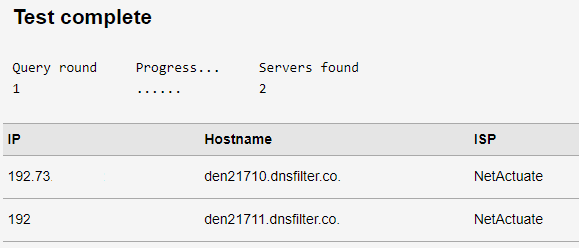
- After running a standard test on the website above, view the list of results. If you're still connected to DNS Filter, you'll probably see "dnsfilter.co" and "NetActuate" listed as the Hostname and ISP, respectively:
Disconnect Devices From DNS Filter
Follow these steps to ensure that there aren't any conflicts between the newer and older versions of the software. Both versions of the filter can't be used at the same time.
Router Migration Guide
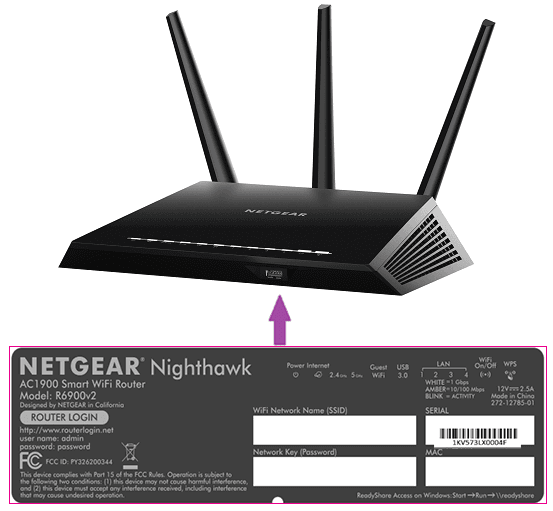
- You will need to log in to your router's access portal/admin panel to follow these steps. Login instructions are typically on the back of your router.
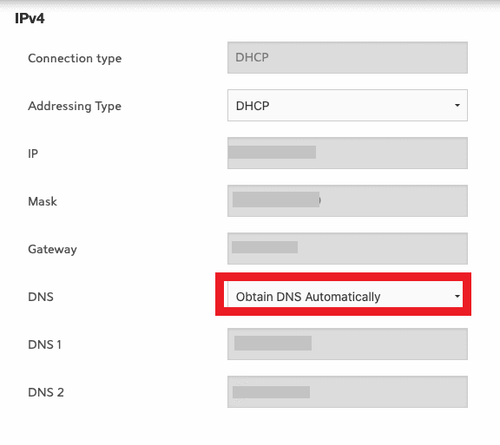
- You will need to change your DNS servers to point to the new service or set them back to the default (auto-generated by your ISP.
- If you want to point your router to the new service: Login to the new version of Tech Lockdown, then go to the Device Setup section, select Router, and click Configure router.
- You'll be prompted to create or link a Cloudflare account if you haven't done so already
- From the Configure router page, you can optionally link an IPv4 address and follow the instructions on that page. Otherwise, click next and configure using IPv6 only.
Remove DNSFilter from your Windows or Mac computer
There are currently two ways to uninstall DNS Filter on a Windows or Mac computer:
- Using uninstall commands that can be found in the old version of the dashboard. These uninstall commands are gated behind profile locking (a self-control feature).
- Using our uninstaller tool, which is an application you can run that removes DNS Filter. You must contact support for the download link.
Alternatively, if you'd prefer to comply with your own secondary email restrictions, access our uninstall instructions and follow the directions to completely remove DNSFilter. Here's how are the steps you will follow:
- Click your profile icon and go to your account
- Select Uninstall from the sidebar. If your profile is locked behind a secondary email address, you'll need to select the Padlock icon to unlock your account
- Send a Pin to your secondary email address by selecting Get Pin:
Note: If you don't see a Pin email, double-check your spam folder or the "All mail" folder.
- After entering the PIN, select Save:
- Go back to the Uninstall page:
- If you're using a Windows computer, copy the command for Windows:
- If you're instead using a Mac computer, copy the Mac version of the command:
- If you're using a Windows computer, open Command Prompt as administrator:
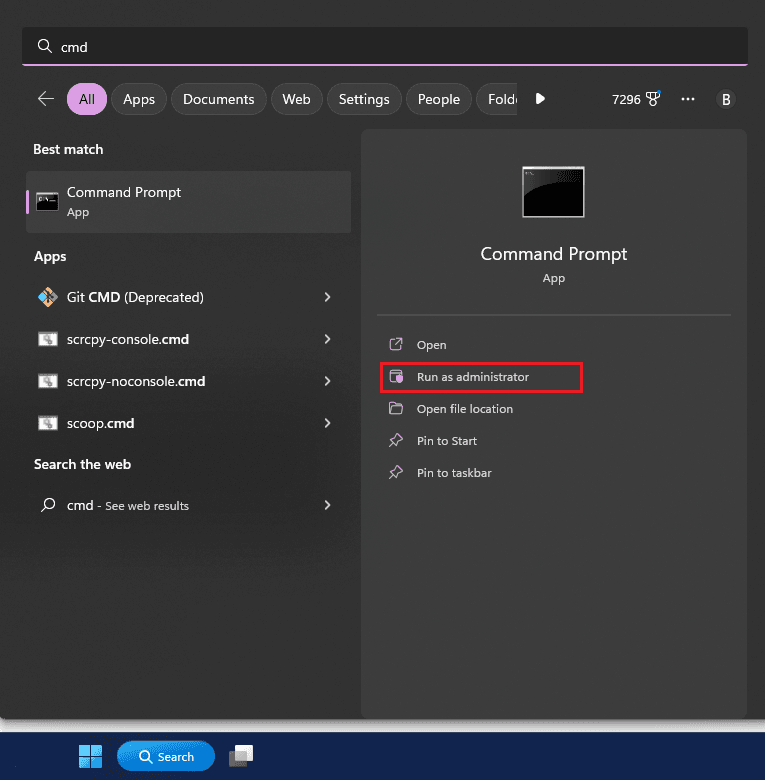
- Enter the command you copied, and press Enter on your keyboard.
- If uninstalling for Mac, copy the command for Mac:
- If you're using a Mac computer, open the Terminal application:
- Enter the command you copied, and press Enter on your keyboard.
- Enter your Mac's password, if prompted:
Note: The cursor won't move on the Terminal Screen as you type. This is normal.
- Access Tech Lockdown's new dashboard for full instructions to set up the new version of the filter. Use your original email address with passwordless login to access your account; you should not need to activate a new subscription.
Please feel free to reach out to support if you have any questions.
Remove DNSFilter from an Android or iPhone device
On Android devices, search your list of installed apps for "DNSFilter" or "DNS Agent".
- Uninstall the DNSFilter App or DNS Agent App from your smartphone.
- Access Tech Lockdown's new dashboard for full instructions to set up the new version of the filter. Use your original email address with passwordless login to access your account; you should not need to activate a new subscription.
Note: If you've installed the DNSFilter app using ManageEngine (via device management), you might need to remove DNSFilter from your enforced list of applications.
Please feel free to reach out to support if you have any questions.
Frequently Asked Questions
Can I connect if my device is managed?
Yes, although management is not required.
If you have an iPhone, you can easily enable supervised mode with Tech Lockdown's new Supervised Mode setup tool for effective bypass prevention.
Can I reconnect my Router to the new platform?
Yes. If you had previously connected your Router to DNS Filter, it should also be compatible with the newer filter.
Can I Use A Dynamic DNS Hostname on the newer platform?
Unfortunately, DDNS (Dynamic DNS) Hostnames are not compatible with the newer version. However, the new version supports IPv6, which is a more modern and reliable way to connect to dns filtering services without worrying about IP address changes. If you have IPv6, you generally don't need to worry about setting up an IPv4 connection.