There are currently two ways to uninstall DNS Filter on a Windows computer:
- Using uninstall commands that can be found in the old version of the dashboard. These uninstall commands are gated behind profile locking (a self-control feature).
- Using our uninstaller tool, which is an application you can run that removes DNS Filter. You must contact support for the download link.
Alternatively, if you'd prefer to comply with your own secondary email restrictions, access our uninstall instructions and follow the directions to completely remove DNSFilter. Here's how are the steps you will follow:
- Click your profile icon and go to your account
- Select Uninstall from the sidebar. If your profile is locked behind a secondary email address, you'll need to select the Padlock icon to unlock your account
- Send a Pin to your secondary email address by selecting Get Pin:
Note: If you don't see a Pin email, double-check your spam folder or the "All mail" folder.
- After entering the PIN, select Save:
- Go back to the Uninstall page:
- Copy the command for Windows:
- Open Command Prompt as administrator:
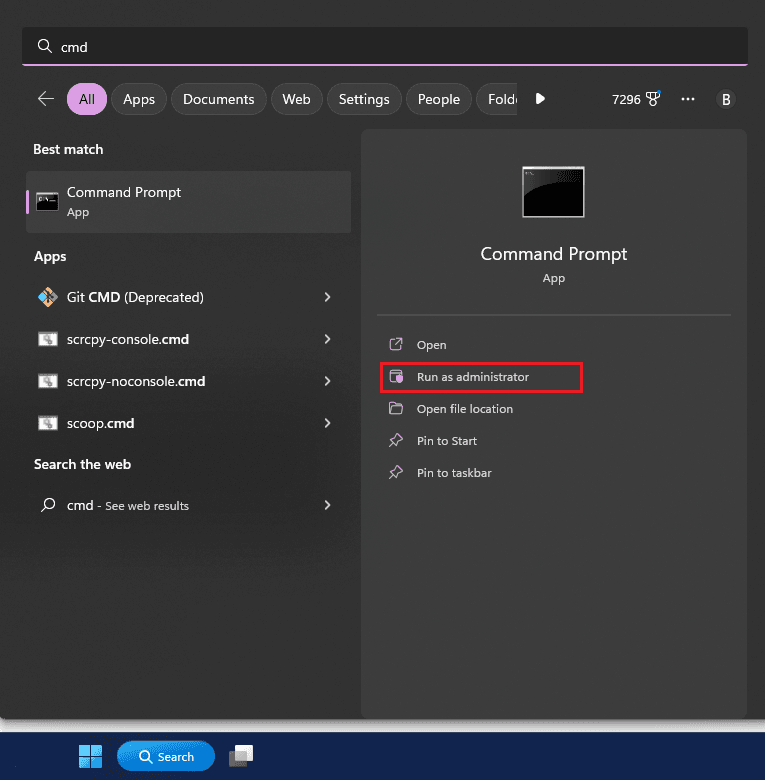
- Enter the command you copied, and press Enter on your keyboard.
Confirm Filtering is Removed
- On this device (your Windows computer), go to https://www.dnsleaktest.com/ and click standard test
You should not see results from "dnsfilter.co" or "NetActuate":
Access the newer dashboard
- Access Tech Lockdown's new dashboard for full instructions to set up the new version of the filter. Use your original email address with passwordless login to access your account; you should not need to activate a new subscription.
Please feel free to reach out to support if you have any questions.