You will need to log in to your router's access portal/admin panel to follow these steps. Login instructions are typically on the back or bottom label of the physical router device.
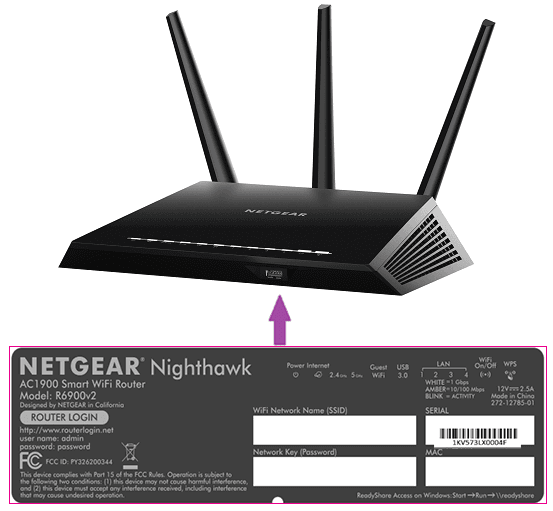
Most routers will have a default password and username listed on the label, as well as an IP address you can type into your web browser:
The most common IP addresses you will need to use are 192.168.0.1 or 192.168.1.1, but check the label of your router, just in case.
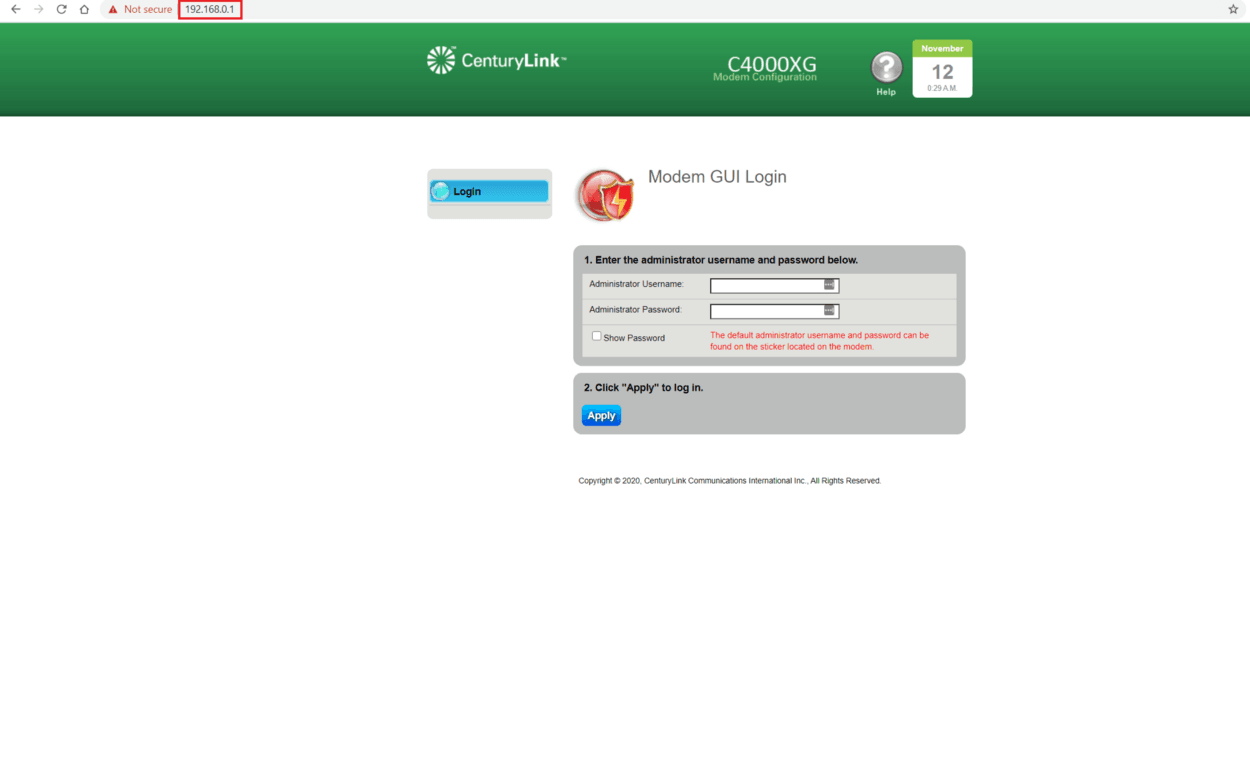
- If done correctly, you should see a login page for your router; enter the admin username and password (usually listed on your router's label). Here's an example:
- You will need to change your DNS servers to point to the new service or set them back to the default (auto-generated by your ISP).
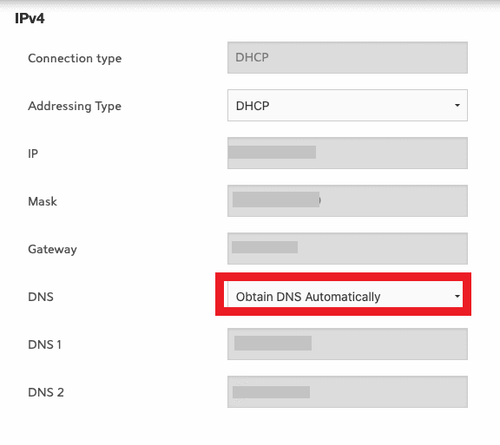
Each router model has a different interface and will likely look different. Most router manufacturers have instructions available on their website.
How to Factory Reset your router (if it's an emergency)
In the worse case scenario, you can completely reset your router back to its default settings with a factory reset. Please note that a Factory Reset is not reversible once complete, and any previous settings you've configured will be erased if you do. If possible, try the above steps first.
Devices will need to reconnect to your router with the default password listed on your router; you will need to start over using the first-time setup.
Most routers have a small button or pinhole near the back or on the bottom of the physical device. Pressing and holding this button for between 5-10 seconds will force your router to reboot it back with its factory settings.
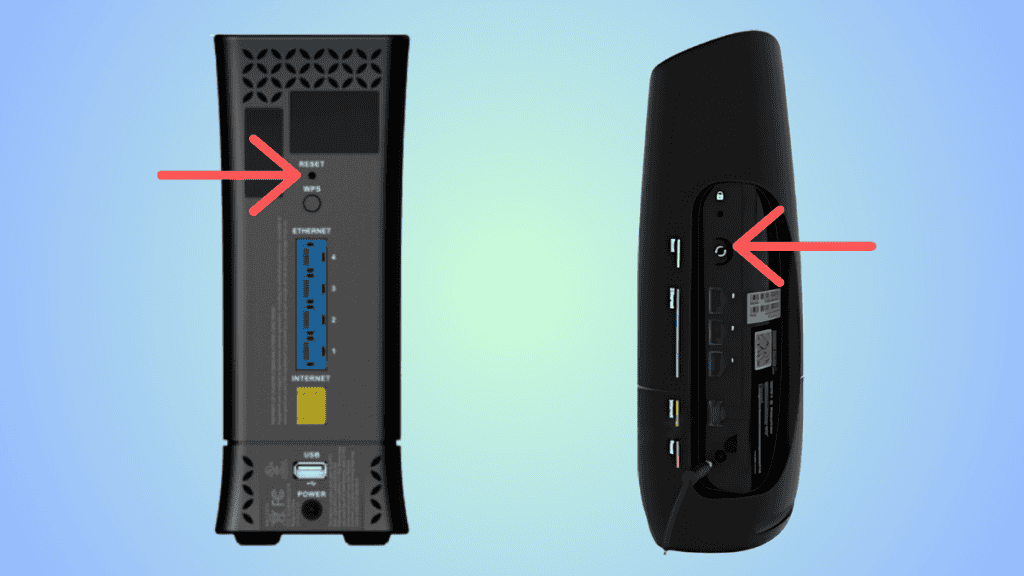
If you see a Pinhole, you may need a paperclip, a toothpick, or a safety pin to reach the button.