Config Presets are an older way of managing apps and features on a supervised iPhone or Mac computer. Here's how to remove and uninstall them from your device.
To use Remote Supervision, it's necessary to remove config presets first.
There are two ways to remove Config Presets:
- Manually remove the config via the Tech Lockdown dashboard
- Automatically as part of upgrading an iPhone to Remote Supervision
If you need to remove Config Presets as part of disconnecting a device, use the manual instructions only.
If you are removing Config Presets as part of upgrading to Remote Supervision, prefer automatic instructions as it is the easiest way to do this while preventing a device from being completely disconnected. This also applies if you're importing a device to manual supervision instead.
1) Manually Remove Config Presets
Uninstalling config files this way requires that your Tech Lockdown profile be unlocked.
- Ensure your Tech Lockdown profile is unlocked before proceeding.
To remove Config Files installed with Tech Lockdown, you may need to first install the removable version of the Config File before removing it. It may help to have both your iPhone and another computer handy.
- On your iPhone, go to iPhone Settings > General > VPN & Device Mgmt. You should see a full list of all Config Files currently installed.
These steps will need to be done individually for each Config Preset:
- To remove most Config Presets, go to Tools > iPhone > Config Presets on the dashboard. Scroll down to the Uninstall Allowed option, and ensure that it's toggled off.
- Re-download the Config Preset to your iPhone. In the example configuration above, these are the Configs that should be downloaded:
- On your iPhone with Settings open to General > VPN & Device Mgmt, tap on the Config Preset you're removing.
- You should see an option to Remove Profile. Select this to uninstall the Config Preset.
2) Automatically Remove Config Presets
If your account is already set up to use Remote Supervision (or you'd like to import a device you've already supervised manually), you can proceed with these instructions.
First, ensure that you've started the process to enable Remote Supervision. This requires enabling Early Access.
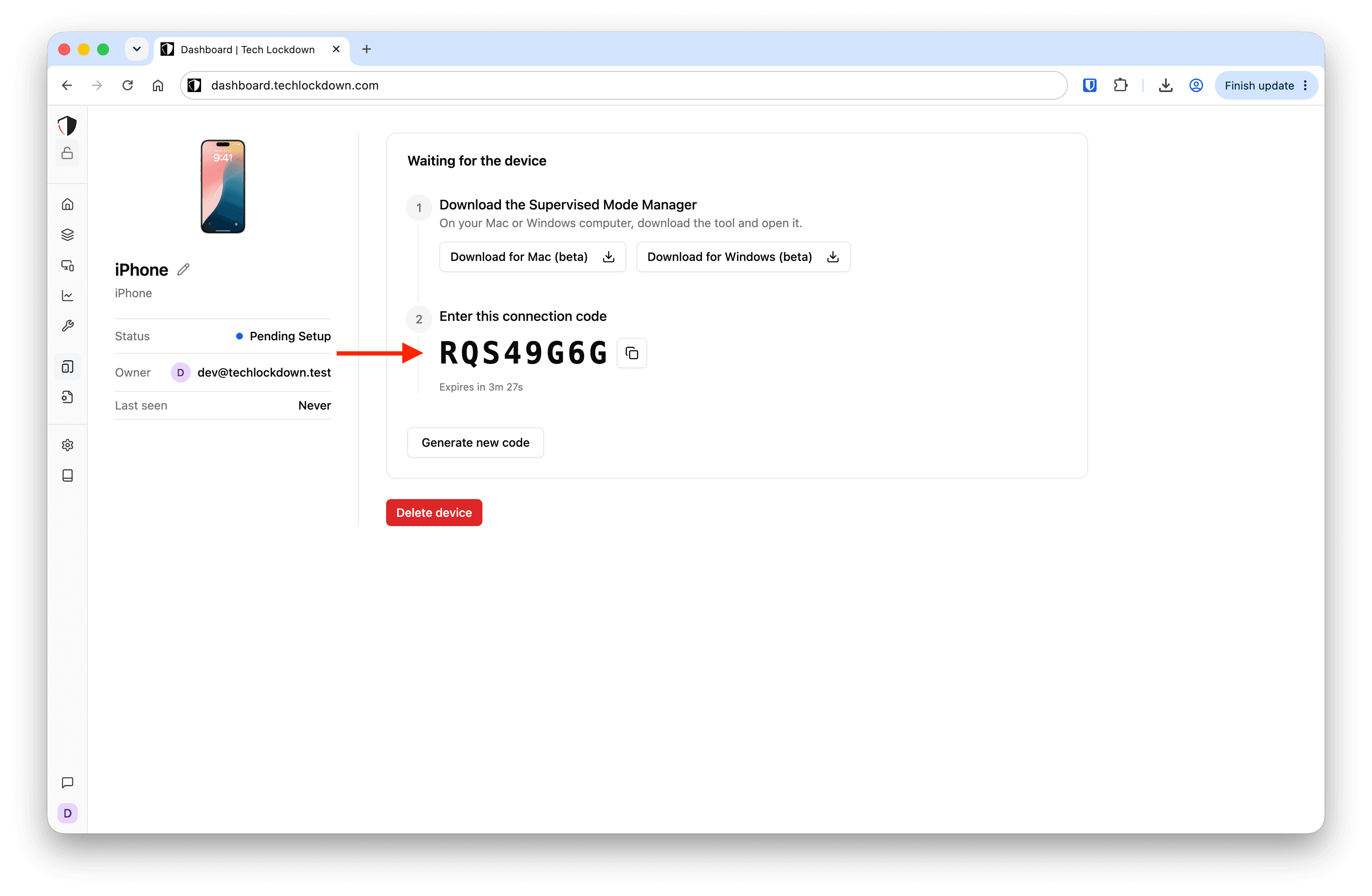
- Under the new "Devices" section, ensure that you add a device.
Note that you can select to either enable Remote Supervision or manually supervise here. Choose according to what you're trying to do. We strongly recommend using Remote Supervision, as it's possible to do things on iPhones that simply aren't practical with manually supervised iPhones.
- Download the Supervised mode manager tool
If you are enabling Remote Supervision, the only config preset you should have to remove manually is called "Prevent Cloudflare Zero Trust VPN":
However, if you're enabling manual supervision, you'll probably need to remove more config presets:
The tool should only display to you the list of configs that you need to remove and in the correct order. The removal process for these configs involves reinstalling a new version of that config that can be removed. For each of the configs listed by the tool, use these instructions:
- Download the config to the iPhone you're trying to supervise.
Note that you can either scan the QR code or download the config file manually using the link presented by the Supervised Manager tool. It's usually much easier to scan the QR code.
If you scan the QR code, you will see something like this in Safari:
- Tap Allow; you should now see a "Profile Download" confirmation
- On your iPhone, go to Settings > General > VPN & Device Management
Here, you should see the config you downloaded listed in this section:
- Tap the downloaded profile
- Tap "Install" near the top right.
- Enter your iPhone's passcode
- Tap Install one more time
- Tap the check mark icon near the top right to close the last confirmation
- Find the config file you just installed; it should be called "Uninstall..." followed by the name of the config
- Tap "Remove Profile", and enter your passcode
- Select "Remove" to confirm
The config should now be removed from your iPhone:
You will need to do this for each config listed by the Supervised Manager Tool. Once you're done, continue following the instructions on the Supervised Manager Tool: