If you'd signed up for Tech Lockdown before May 13th, 2024, then you may be using the older version of the platform.
We're in the process of deprovisioning the older platform, and deprovisioning will be finished by March 10th, 2026. We strongly urge you to check your devices (especially your router) to prevent any disruption to your internet.
Learn more about what this means.
We've provided uninstaller tools that will help make the uninstall process as easy as possible; no entering commands required! There are two versions of the tool for both Windows and Mac computers.
Jump to Section:
Instructions for Windows
- Download the Windows Uninstaller tool from this link.
- Open the file. The easiest way to do this is to choose the Open File prompt in your web browser.
- You should see a Command Prompt window and an option box like this; choose Yes to continue to uninstall.
- When you see a window like this, select OK:
- Allow the setup to complete (this may take a few minutes):
- You will likely see an alert like the one below. DNSFilter needs to be stopped completely, so select OK to proceed:
- After this is done, you can safely close the Command Prompt window:
- Run a standard test on the dnsleaktest.com website. This website checks the DNS Servers your device is currently using.
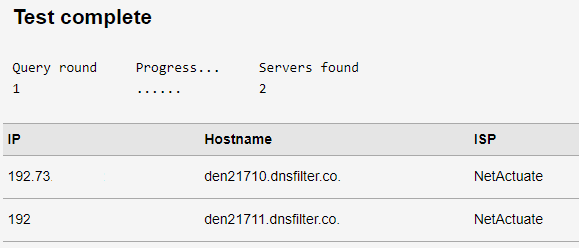
After running a standard test on the website above, view the list of results. You should not see "dnsfilter.co" and "NetActuate" listed as the Hostname and ISP, respectively.
Here's an example of a test where DNS Filter is still active:
Instructions for Mac
- Download the Mac Uninstaller tool from this link.
- Open the file. The easiest way to do this is by double-clicking the file in your Downloads folder.
You should see a screen like this:
- Click Continue to progress through the steps. Leave everything to its default values.
- Install for all Users.
- Select the Install button when prompted:
You will likely see two authentication messages.
- One will ask if you'd like to install new software:
- The other will ask for permission to remove DNSFilter from System Extensions:
Once complete, you should see a message like this:
- Run a standard test on the dnsleaktest.com website. This website checks the DNS Servers your device is currently using.
After running a standard test on the website above, view the list of results. You should not see "dnsfilter.co" and "NetActuate" listed as the Hostname and ISP, respectively.
Here's an example of a test where DNS Filter is still active:
Remove DNSFilter from an Android or iPhone device
On Android devices, search your list of installed apps for "DNSFilter" or "DNS Agent".
- Uninstall the DNSFilter App or DNS Agent App from your smartphone.
- Access Tech Lockdown's new dashboard for full instructions to set up the new version of the filter. Use your original email address with passwordless login to access your account; you should not need to activate a new subscription.
Note: If you've installed the DNSFilter app using ManageEngine (via device management), you might need to remove DNSFilter from your enforced list of applications.
Please feel free to reach out to support if you have any questions.